
You bought ThriveCart for your checkout and now you have a free course builder. Free 99 sounds awfully good. But sometimes free isn't better.
ThriveCart Learn is the “yeah we can add that” course builder that you get with ThriveCart’s lifetime membership. It’s become a course creation favorite for small businesses not yet ready to invest in pricey or monthly subscription platforms. In theory, that’s making it accessible; however, like the other online course platforms out there, it’s got good things and bad things in terms of designing for real learning.
This is part of a series where I reviewed 16 different course platforms searching for something that wasn’t garbage.
The Set Up for a REAL ThriveCart Learn Review
Every platform had the same lesson from my own course. This lesson had specific things that made it a perfect stress test for the hunt for the best course platform.
It was a braindump. That means my clients just write without stopping, so it was a pretty simple ask that had questions and needed a place to put answers.
It had 3 potential pathways that depended on how you were coming to me (it changes the questions I ask).
I took this lesson and tried to put it in each platform answering three questions:
Can you track something other than the complete button or time on video?
Can you build different pathways for clients?
How much friction is there between consuming the content and doing the thing?
I try not to bash platforms, so I start with what ThriveCart Learn lets us do.
Table of Contents
*Disclaimer: There are two flavors: ThriveCart Learn and ThriveCart Learn+. Regular old learn is more limited; I wanted to test the full features so I’m using Learn +. IF you only have access to “Learn” you might not have these features.
Getting Started: How Easy Is It to Build a Course in ThriveCart Learn?
In ThriveCart Learn+, it's actually pretty easy to get a new project and course started, and you can have multiple courses in the same project. So if you had different memberships or different types of programs you were trying to run, you could do that all in here.
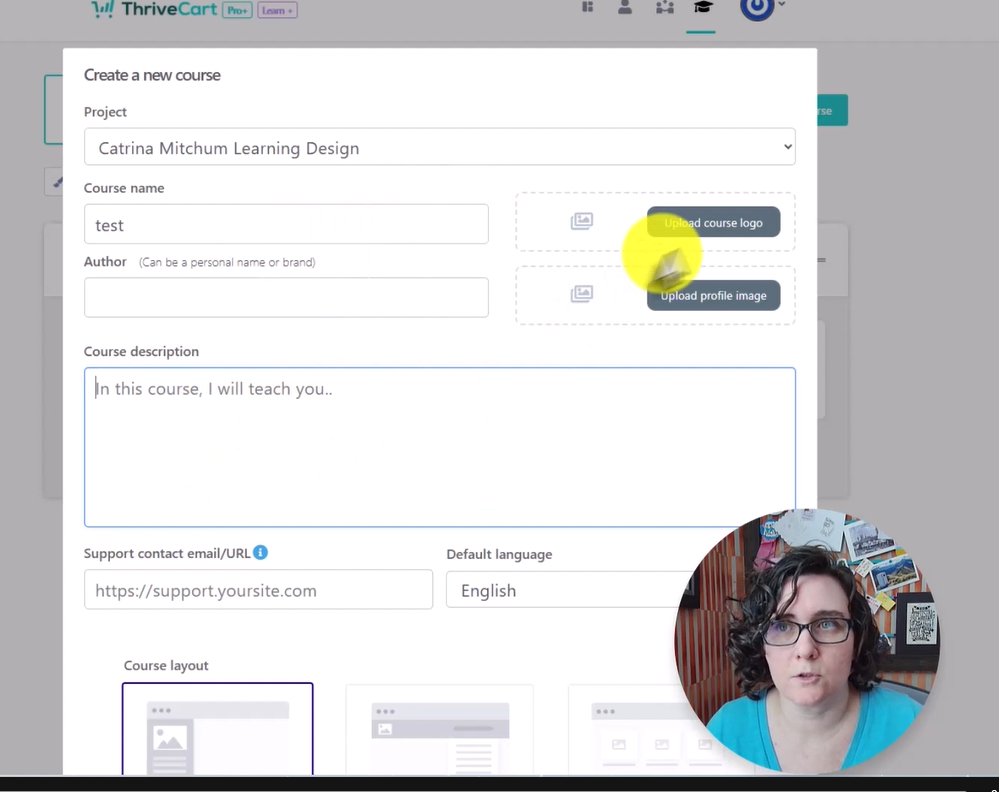
Creating a course is as easy as hitting create a course. You pick the project you want it in, you name the course. Of course, you have all these things too, like the description, the logo, the profile image, the support contact you want. And then you can choose the layout.
You basically start with a blank slate, but you can select a specific layout.
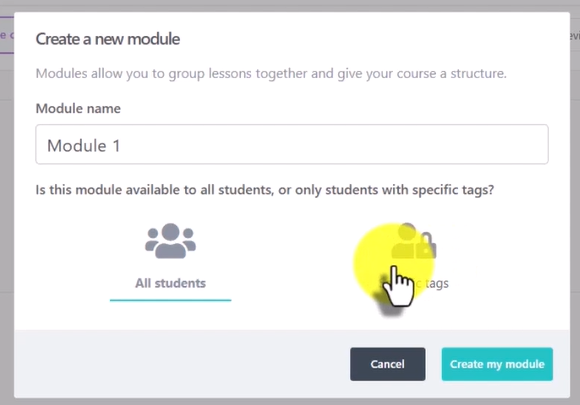
I created a module, which can be set to either all students or students with a specific tag. This had potential for pathways, but it was intended for sales and marketing purposes so it was a complicated set up to use it for pathways.
From draft mode, it’s pretty easy to shift things over to publish, you just turn the toggle on. Then under the module, you can drag and drop a lesson.
What You Can Build Into a Lesson in ThriveCart Learn
You’ll see below that I named the lesson braindump and it was set for all students to be able to see, but if I wanted specific tags, I could do that so they'd click a button in module one to get to different areas.
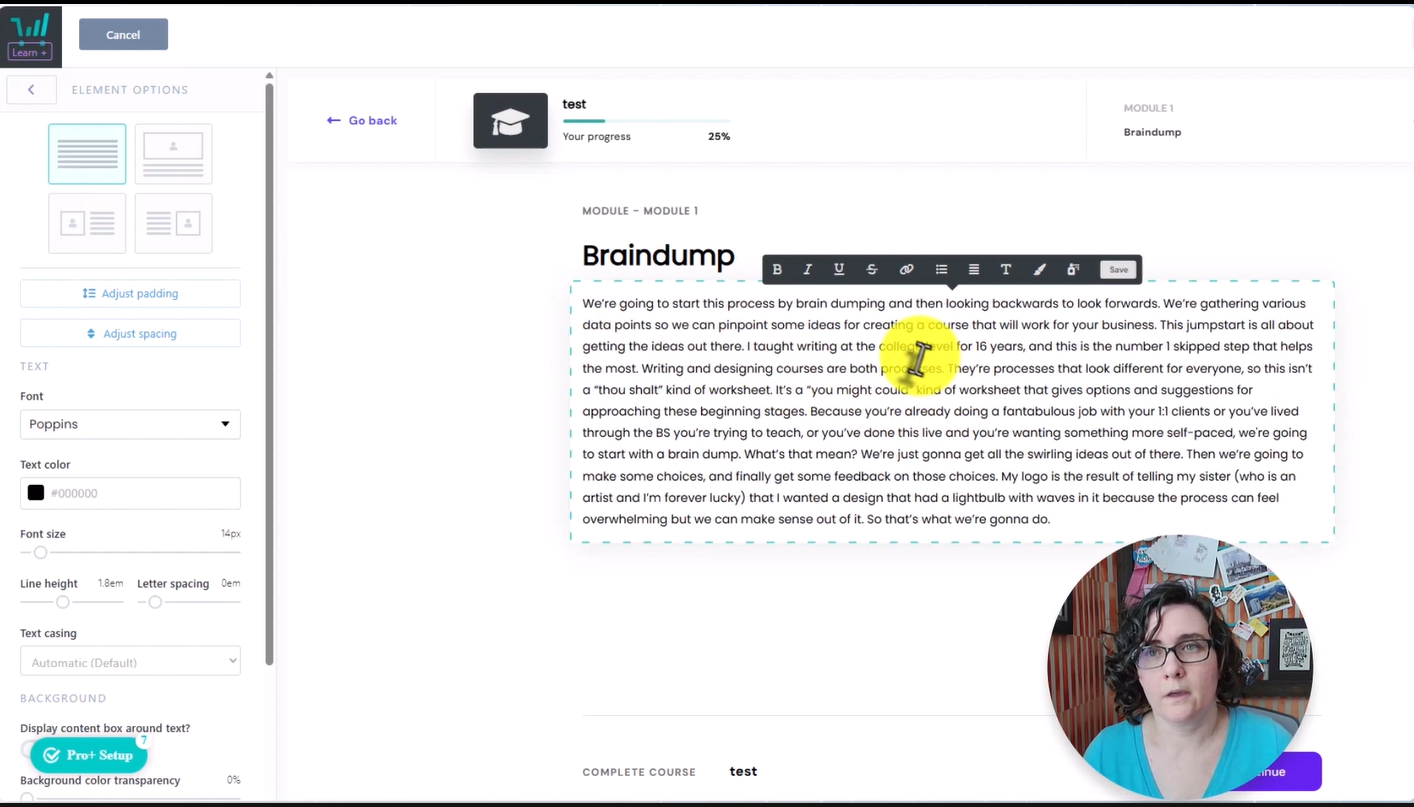
One of the things that was kind of nice about ThriveCart Plus was the options. This is what the lesson looks like, and there are a lot of options for what we include. We already have a header in here. I threw in my overview, and it doesn't hold the formatting, so these were paragraphs I'd have to come back and format, the bullet points or whatever it happens to be.
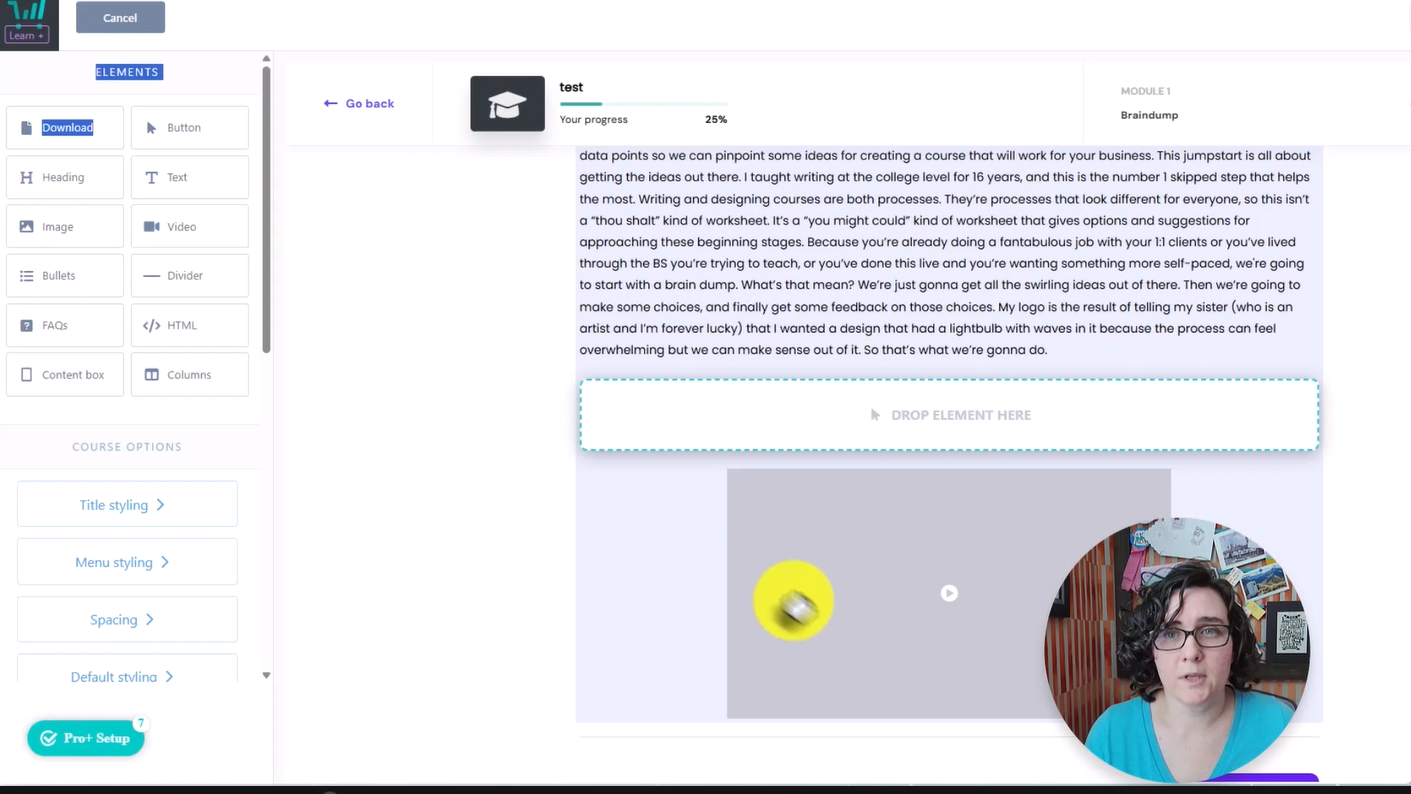
You can also drag and drop in video options, but it does need the embed code, so you have to host these somewhere else and go grab the embed code, not just a link.
You can add buttons and put a URL in the button.
You can add HTML, which is nice, and you can add FAQs, which can be helpful if there's a choice students need to make, or if there are questions people consistently have about a certain lesson. You can pull those into an FAQ.
Something that's missing is that educational tools piece. There's no quiz option and no place to turn things in. You'll have to build that out separately.
Question One: Can You Track More Than "Video Watched" or “Look, Ma! I clicked a button!”?
The first question I've already answered by telling you what’s available to build a lesson: can I track something other than videos and click complete, to see whether folks are actually doing the work I'm asking them to do? The answer for this one is no.
There’s no educational tools so you can only track button clicks.
You can view each student's individual profile. So you get to see the 16% completion, because I was in there as a student clicking on things. That's it. The only thing I'd done in there was watch some videos, and in one case clicked “complete” without doing anything else. You could just click complete all the way through and not even attempt to do anything in the course.

Question Two: Is Thrivecart Learn Built for Pathways?
Pathways are an important part of a lot of learning experiences when you have clients that come with different experiences. A learning pathway is having different places to start or move through the course depending on what you have. For example, if you had a course on historical meal etiquette, someone who larps on the weekends would start somewhere further along than someone who doesn’t. This is especially true for my own course, so this first braindump lesson was a perfect way to break, I mean test, these platforms.
The Student Dashboard and Path Structure
When I tried to test the second question, I was excited about the tag feature. BUT it didn’t work for my use case. You can set it up to drip lessons and modules, but if I'm setting up pathways, I won't really be able to do that.
Below, you can see I created the "start here" section. I've got the overview, the video, and then pick a path. For my course, I want them to pick a path. Each individual page can become a link, so I made it so you could click from here into the other things. I'm going to show you what that looks like from the student's perspective.
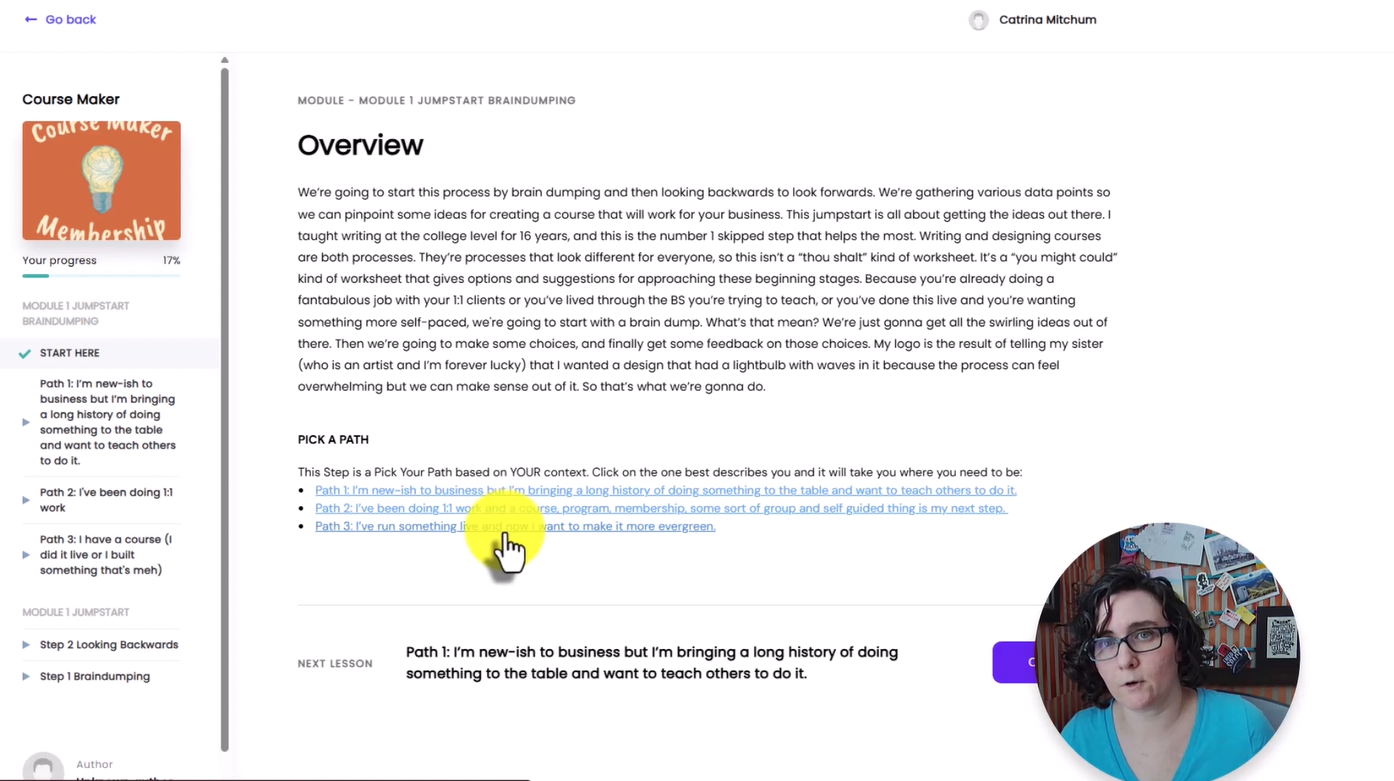
I've got the overview, and let's say I've already done something, that's where I want to go.. It's similar to other platforms I've looked at, if there's no clicking of complete, you don't get the checkbox. That's something you'd need to make sure folks are aware of.
It's not inherently built into the platform, but the platform is flexible enough that you could do a creative workaround.
You get a lot of flexibility in how you layout the lesson (some really push that video at the top). I put the videos in here, a bit further down.
Then I have a feedback request in my course, and I pulled that in, this is where they'd put any of their brain dump questions. You can have that external kind of reporting. For me, this is a form they fill out and it goes to a spreadsheet, that's how you can track things. I also have a Google Doc workbook for them to do the work themselves.
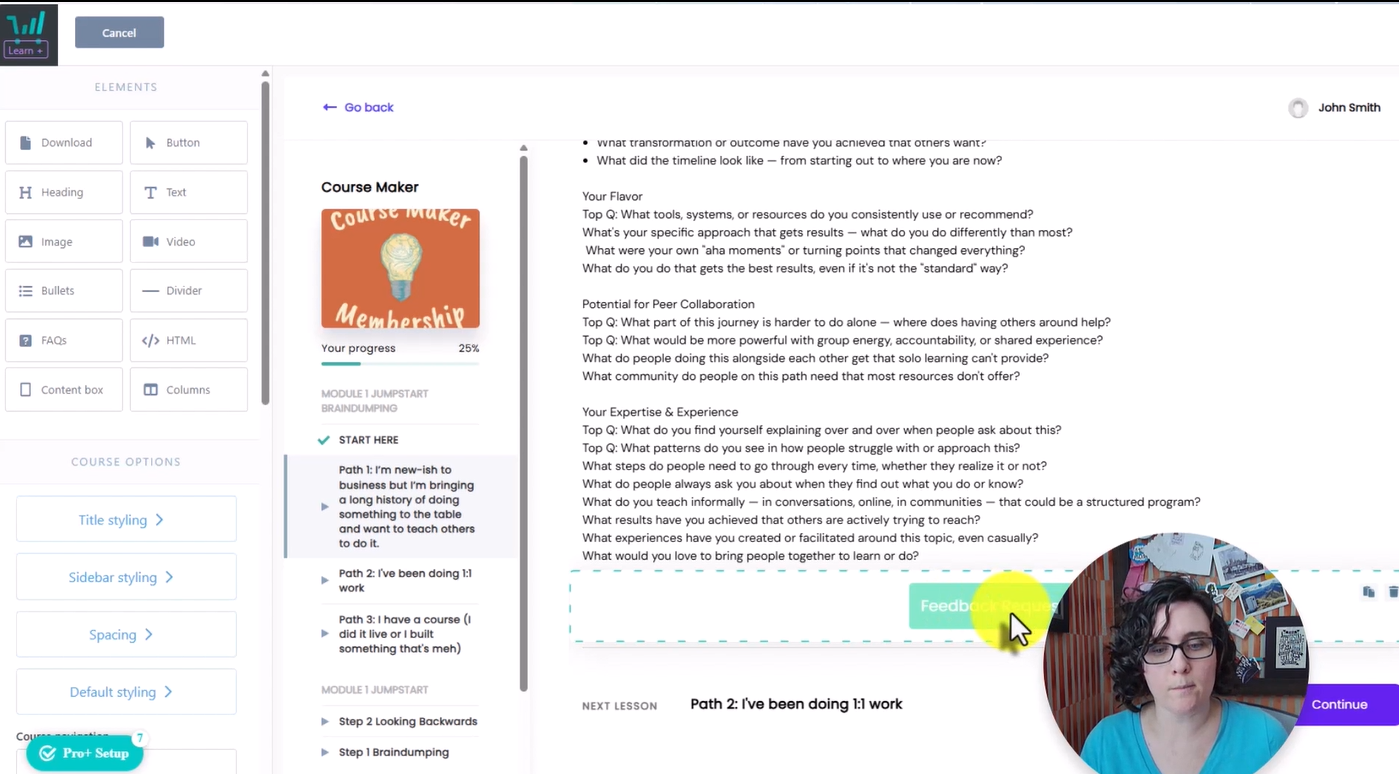
How you want folks to move through the pathways determines how you structure it. I made this module one "jumpstart brain dumping." My module two would be "looking backwards." If I wanted module one to just be jumpstart, I could do that, and my step one would be the brain dumping.
Building Pathways Into a Single Lesson With HTML
Something I did try is building the pathways directly into a single lesson. I had to use HTML to do that, because there's no way to really set up anchors. From my view, this custom HTML is an anchor for path one.
From the designer side, it's a little complicated, there are other things going on. To get around the Google Doc issue and have other space to put in here, HTML, if you know how to use it, can actually be really useful.
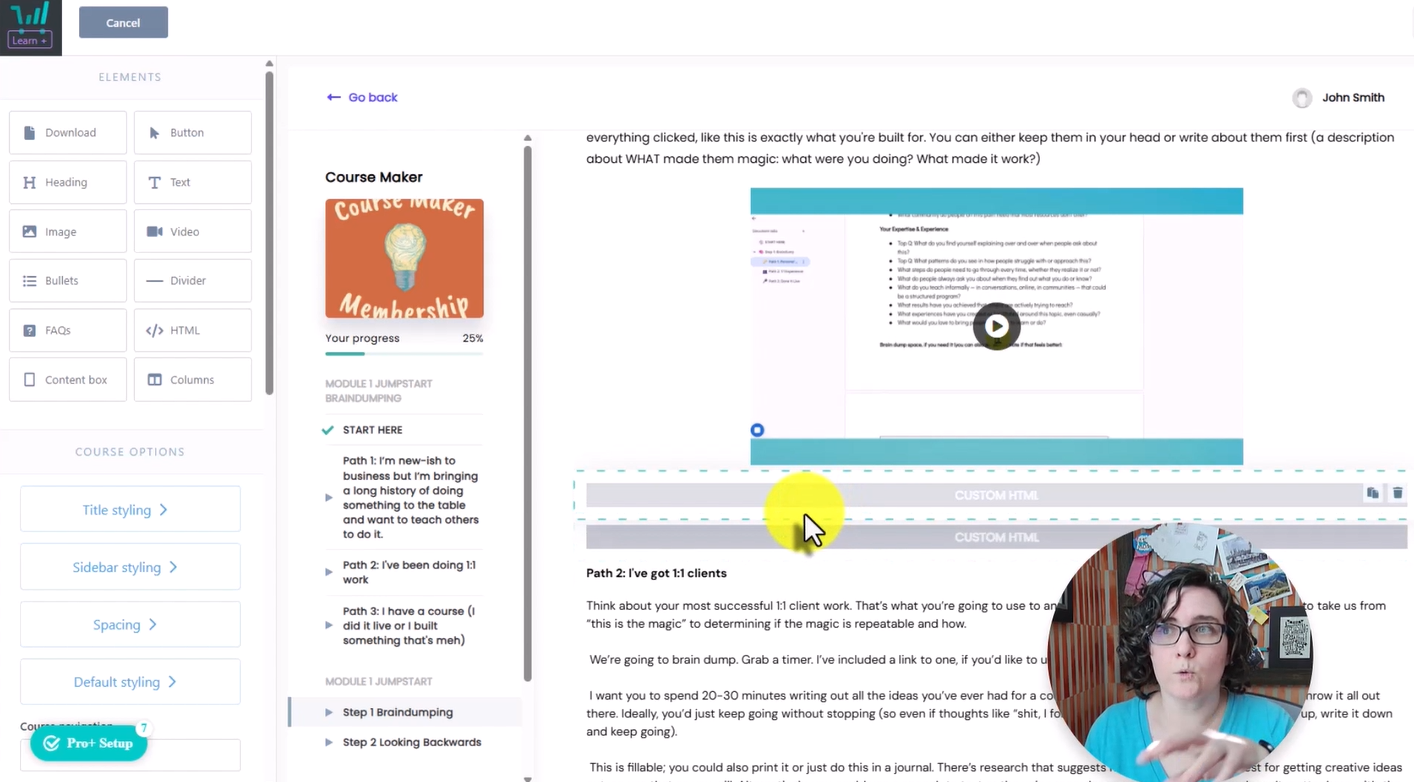
I made an attempt to build out the pathways in a single lesson. It's not easy or intuitive, and I'm still seeing all the other lesson pieces, there's no way to hide it unless you get into advanced tagging, but that’s still clunky. The tags let you limit access to the whole course so you’d have to build out each pathway as different courses.
Typing that made my eye twitch.
If you're having them click a link at the beginning, you're going to want to give them access to the other pathways in the other steps of the course.
Question Two Verdict: Pathways Are a Conditional Pass
There's the opportunity, if you know what you're doing, to build out things that look and smell like pathways for students in ThriveCart Learn Plus. But it's not easy to do on the designer side. So this is a conditional pass, there are ways to do it, you just have to be creative.
Question Three: Can Students Easily do the Dang Thing In Thrivecart Learn?
These questions all sort of lead into each other. If you can only track button clicking and there’s no pathways set up, that often leads to a more complex design.
So if you're going to have a course that's mostly watch the video and do the thing, it has to live elsewhere if you’re using Thrivecart learn, and so it depends on where the action is happening.
Reducing friction for students means reducing click steps, but also making it easy to do the action.
Embedding the task in here is pretty critical for passing the third one, we don't want them to have to click out.
This is a conditional pass, because:
Can you do it? Yes.
Is it easy for you as the designer? No.
You can embed other things like forms. I did that below. If they fill it out here, it disappears, you get it on your end (wherever you’ve created it). You could build the HTML code so it sends them something after they've filled it out, but that's starting to get into things that are more complex.
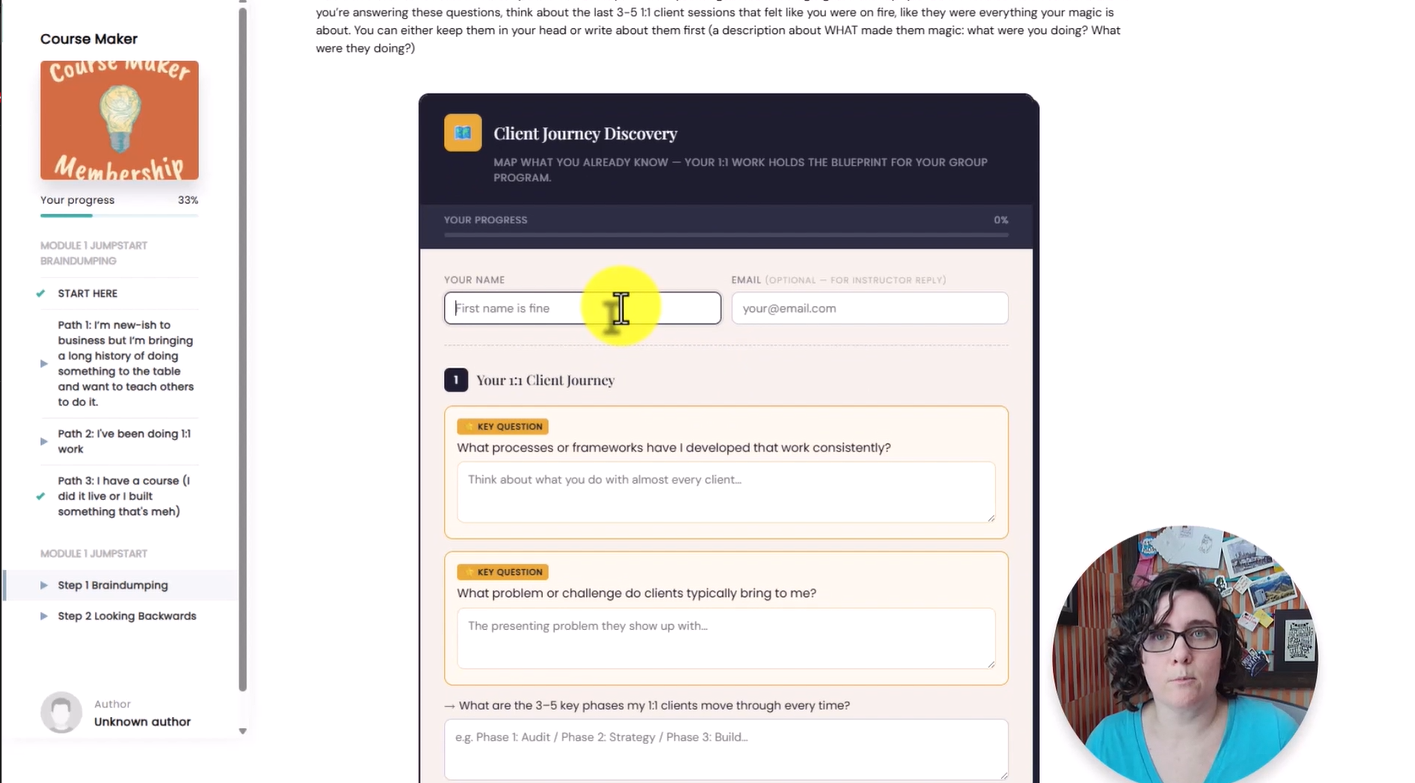
I went in and clicked “complete” on a bunch of lessons, but again, didn't watch a single video or complete a single form. I wanted to show you that the completion shows 50%.
So again, if you want to track things or give feedback, it requires some sort of external mechanism.

ThriveCart Learn's Accessibility Problems
As a bonus, because accessibility matters, I ran Successible, the accessibility checker, on the course developer side of things first. Successible is a browser extension tool that uses WCAG accessibility standards to check for accessibility issues on the web.
It found 46 issues, and every single one of them is an issue with ThriveCart Learn itself. All of the images that are missing alt text, the stopwatch icon down in the corner, the rocket ship up at the top, the stopwatch icon in the upper right hand corner, those aren't things I can control.
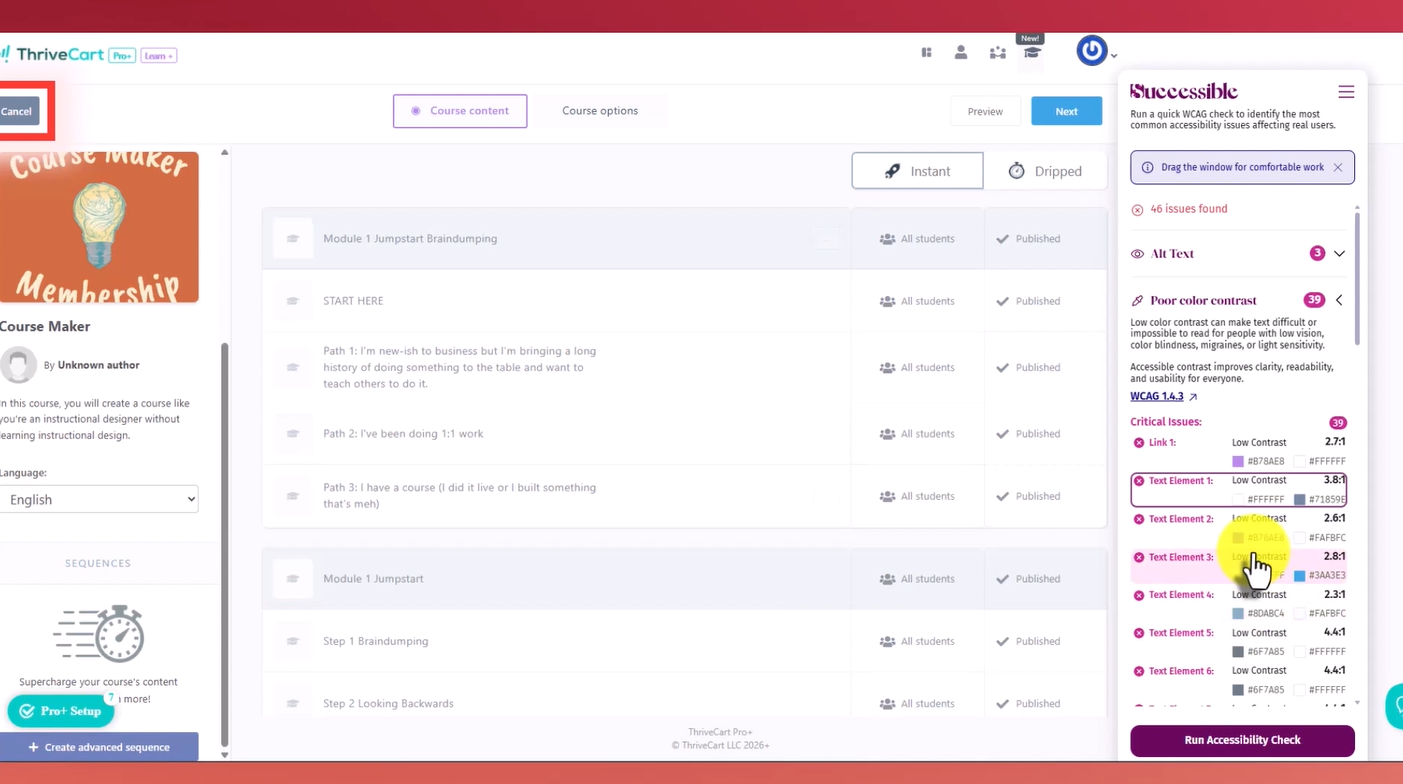
Poor color contrast on 39 elements, I can click on the element I want to check and it pops a box around where there's poor color contrast. It's literally everything on this page except the next button and my own icon. Everything else is popping up as low contrast. Lastly, there are some skipped heading levels, and again, these are things baked into the platform itself, not things I can control.
I wanted to try this on one of the lesson building pages too. I ran Successible again, it's got two alt text issues, both baked into the platform. On the second one, I checked whether I could fix it, it's flagging an image where I hadn't uploaded my own photo. I went to see if I could add alt text to my photo. Yeah, I couldn’t.
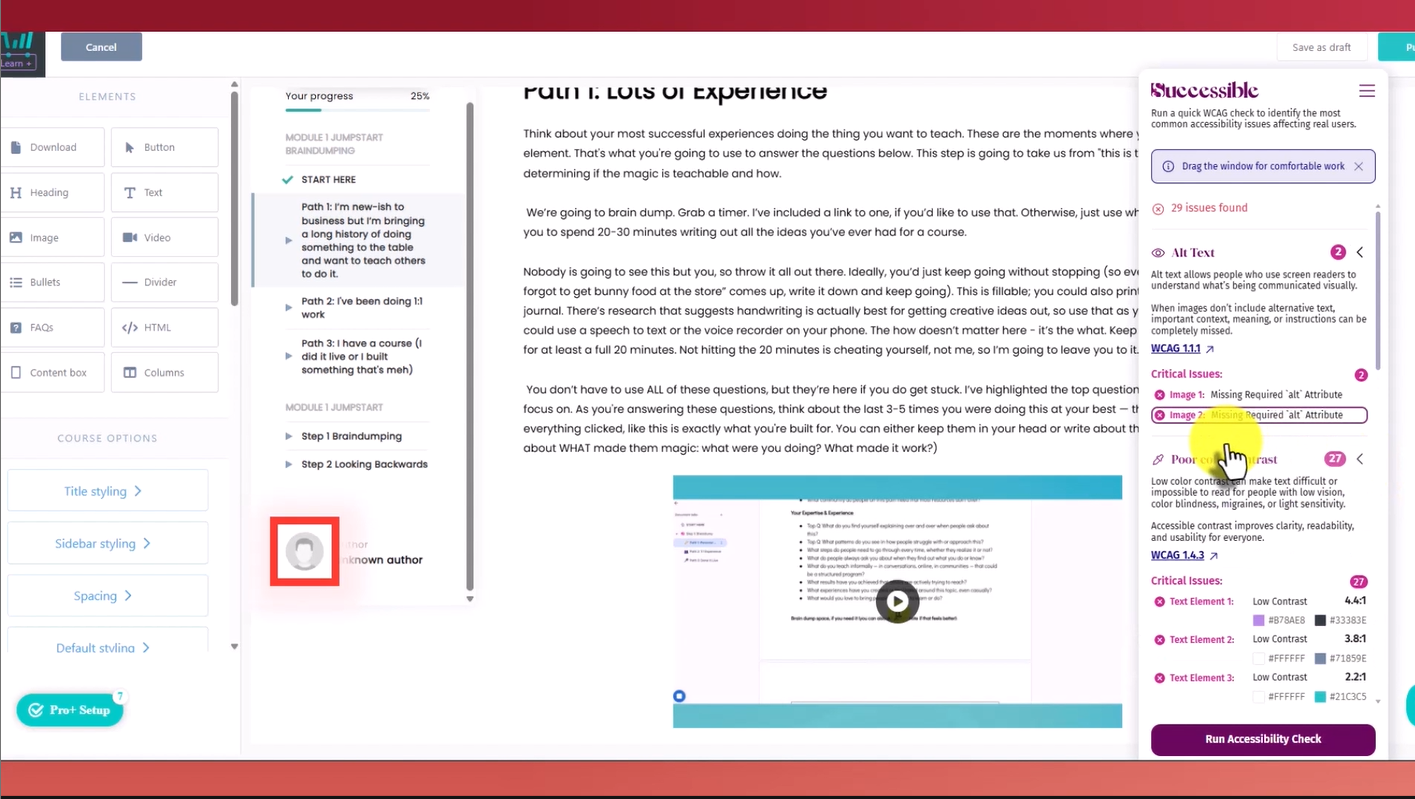
All of the poor color contrast is once again part of the system itself. The only one I can change is button one, the feedback button. I clicked on that and changed the colors to my own brand colors, and changed the font to something closer to my brand fonts. I reran the accessibility report, and button one disappeared from the list, that button's no longer a problem.
But all of the other text elements are part of the platform I cannot control.
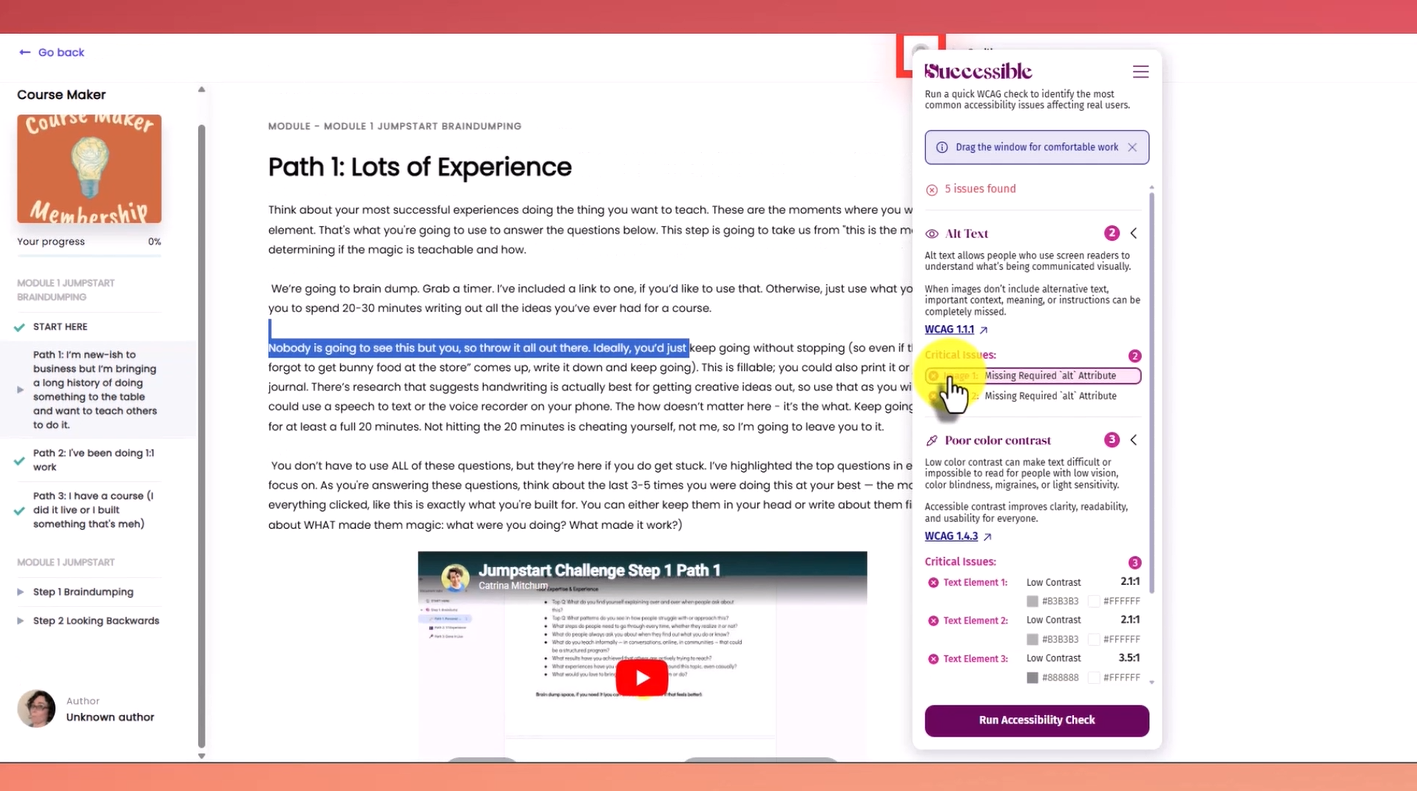
I also popped into the learner view and run an accessibility check. There are five issues, and they're all ones I can't control. The image issues are around the student profile picture and my profile picture, and the poor color contrast is all in the navigation bar for the course.
I’m not paid by Successible to do these reviews (it’s just genuinely useful), but if you want to try it out, I am an affiliate. There’s also a coupon to use until 7/31/26: BIRTHDAY23OFF
Should You Use ThriveCart Learn?
I always have to ask this question before I give any kind of overall advice:
Are you choosing ThriveCart Learn because it's actually serving your learners and helping you do the things you want to do for them, or because you already have access to it?
If the answer is because you already have access to it, that's okay, but it means you need to be extra focused on making sure you plan what you want the course to be (what it should be) and then be creative, and fit it into what you have.
The Overall Verdict for Thrivecart Learn
ThriveCart Learn genuinely has some good features. I specifically liked being able to control the way a lesson looks.
On question one, whether you can track something other than watching videos, it failed. You can't even track watching videos, you can only track whether or not someone hit the complete button.
For question two, about pathways, there’s nothing. BUT there are ways to creatively set up pathways. I tested the tagging feature, so in theory, if someone came in already knowing their path and you didn't want them veering from it, you could tag them at the get-go. That looks to be a manual process, though I'm sure you could build something on the back end where things talk to each other and get automatically tagged. It would still require some sort of onboarding survey, like the one I have, that tells you what they need to go do. Question two is a conditional pass.
Question three, friction, is also a conditional pass, because it depends on how you structure those pathways. There's no actual learning tool built in, which makes it harder to put things in there, there are going to be more click steps inherently, because it's not native to the tool.
Another thing that isn't really in my question set, because those questions are largely about the learners, is that to do any of the more advanced things, you need to understand HTML and be able to build things separately. Adding videos requires you to grab the embed code from wherever you're hosting it, YouTube, Vimeo, wherever, you need the embed code, not just the link.
So overall, it's a little more advanced if you want to create a course that's most helpful to students. There's potential there, but more work for you. That's a decision you'll have to come to. If you decide it’s not for you, I’ve got some Thrivecart Learn Alternatives for ya, too.
If you’re suddenly not sure if you’re really ready to pick a platform, I’ve got a quiz for that or you can schedule a strategy session.